Configure video enhancement settings in AnyEnhancer

 AnyEnhancer
Demo summary
The user imports a low-quality b-roll clip into the AnyEnhancer app and selects settings for 4K upscaling, face restoration, color enhancement, and 4X frame rate interpolation.
Step-by-step
- Drag and drop or select your video file to upload it into the app
- Select 4K from the resolution settings
- Enable Face Restoration
- Download and apply the Colorization feature if desired
- Toggle Color Enhancement and Denoise options
- Set the frame rate improvement to 4X
Options
- Drag and drop files or choose from system folders
- Apply Colorization
- Apply Color Enhancement
- Apply Denoise
Watch out for
- The Colorization feature must be downloaded separately within the app before use
Highlights
“it's very very easy to get going with this one”
All demos from “How to Enhance Video Quality with AnyEnhancer: Best AI Video Enhancer for 1080p to 4K Conversion”
- 4:210:51Configure video enhancement settings in AnyEnhancerCurrentThe user imports a low-quality b-roll clip into the AnyEnhancer app and selects settings for 4K upscaling, face restoration, color enhancement, and 4X frame rate interpolation.AnyEnhancer· AI Video Upscaler
- 5:120:59Preview AI video upscaling and face restorationThe AnyEnhancer tool processes a 3-second preview of the footage, showing a side-by-side comparison of the original blurry video versus the AI-enhanced version with clearer facial details.AnyEnhancer· AI Video Upscaler
- 6:110:30Exporting enhanced video from AnyEnhancerThe user demonstrates the export process in AnyEnhancer, selecting the output format (MP4, MOV, WebM, or FLV) and saving the final rendered 4K file to the desktop.AnyEnhancer· AI Video Upscaler
- Watch “How to Enhance Video Quality with AnyEnhancer: Best AI Video Enhancer for 1080p to 4K Conversion” →
AI Video Upscaler
- 4:210:51Configure video enhancement settings in AnyEnhancerCurrentThe user imports a low-quality b-roll clip into the AnyEnhancer app and selects settings for 4K upscaling, face restoration, color enhancement, and 4X frame rate interpolation.Digital Product Wizard
- 5:120:59Preview AI video upscaling and face restorationThe AnyEnhancer tool processes a 3-second preview of the footage, showing a side-by-side comparison of the original blurry video versus the AI-enhanced version with clearer facial details.Digital Product Wizard
- 6:110:30Exporting enhanced video from AnyEnhancerThe user demonstrates the export process in AnyEnhancer, selecting the output format (MP4, MOV, WebM, or FLV) and saving the final rendered 4K file to the desktop.Digital Product Wizard
 1:491:36Upscale video to 4K with AnyEnhancerThe user demonstrates the AnyEnhancer interface, showing how to upload a low-quality sample video and select enhancement models like 'Smart Enhancement' or 'Face Correction' to achieve 4K resolution.AI様の下僕
 3:440:48Upscale video to 4K with Intelligent EnhancementThe video shows the process of using AnyEnhancer's Intelligent Enhancement model to simultaneously perform facial restoration and upscale a 1080p video to 4K resolution.VideoEditOz
 1:381:44Upscale and sharpen blurry faces with AnyEnhancerThe creator uploads a blurry video clip to AnyEnhancer and uses the 'Intelligent Enhancement' model at 2K resolution to sharpen facial features and improve overall clarity.Michelle The Creator
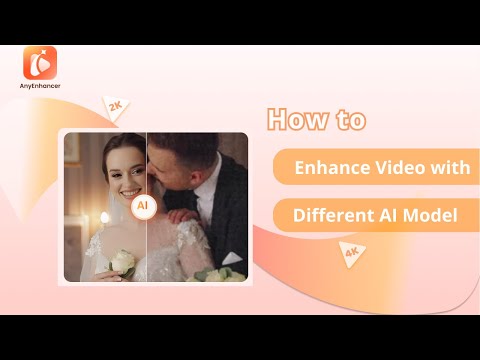 0:411:02Upscale video resolution with Intelligent EnhancementThe video demonstrates using AnyEnhancer's Intelligent Enhancement model to refine facial details and upscale video resolution to 2K or 4K.iMobie Support
- 1:430:59Increase video clarity with Resolution EnhancementAnyEnhancer is shown processing low-resolution footage to increase clarity and detail using its dedicated Resolution Enhancement AI.iMobie Support
 0:111:45Enhance video resolution with AnyEnhancerThe video demonstrates how to upload a file to AnyEnhancer, select the Resolution Enhancement AI model, preview the side-by-side comparison, and export the final upscaled video.iMobie Support
 1:380:46Previewing and exporting upscaled video in AnyEnhancerThe video shows the process of previewing the AI enhancement, selecting output formats, and exporting the final high-resolution video file.Cero