HitPaw Edimakor: Auto-subtitle generation

 HitPaw Edimakor
Demo summary
The user demonstrates the 'Auto Subtitle' feature which transcribes speech and places timed captions on the video automatically.
Step-by-step
- Go to the Subtitle option in the editor
- Click on Import File and select your video
- Set the source language to Auto and the target language to your desired output (e.g., English)
- Click on Auto Subtitle to generate the captions
- Select a subtitle segment on the timeline to open customization settings
- Adjust the font, style, and background from the right corner options
Options
- Set source language to Auto or a specific language
- Choose from various variant styles and background options for text
Tips
- Use the 'Auto' language setting if you are unsure of the source audio language
- Customize the font and style to make the subtitles look better and more professional
Highlights
“टोटली कस्टमाइजेशन का ऑप्शन है जिस तरह से आपको बेहतर लगे आप इसमें ऑटो सबटाइटल कर सकते हैं”
All demos from “Dhruv Rathee Editing Breakdown 🚀 🔥Using HitPaw Edimakor💡 #dhruvrathee #editingtutorial”
- 2:003:21Basic video editing and background removal in HitPaw EdimakorThe creator demonstrates importing files, applying animations, color grading, and using the one-click AI background removal tool within the HitPaw Edimakor timeline.HitPaw Edimakor· AI Video Editor
- 5:380:48Using built-in stock media in HitPaw EdimakorThe user shows how to search for and drag-and-drop free stock videos and images directly from the software's integrated library into the project.HitPaw Edimakor· AI Video Editor
- 7:430:44Adding and animating text in HitPaw EdimakorThe demonstration shows selecting text styles, customizing fonts and colors, and applying entry animations to text layers.HitPaw Edimakor· AI Video Editor
- 9:551:51AI Video Generation from promptsThe creator uses a prompt from ChatGPT to generate a completely new video scene using HitPaw Edimakor's AI video generator.HitPaw Edimakor· Text to Video
- 13:170:56Creating AI Avatars with lip-syncingThe demo shows selecting an AI character and pasting a script to generate a talking head video with synchronized lip movements.HitPaw Edimakor· AI Avatar Video Generator
- 14:131:12Auto-subtitle generationCurrentThe user demonstrates the 'Auto Subtitle' feature which transcribes speech and places timed captions on the video automatically.HitPaw Edimakor· AI Video Editor
- Watch “Dhruv Rathee Editing Breakdown 🚀 🔥Using HitPaw Edimakor💡 #dhruvrathee #editingtutorial” →
AI Video Editor
 0:270:56AI Motion Tracking and Smart Auto Mosaic in EdimakorThe video demonstrates how to use HitPaw Edimakor to track moving objects or faces and automatically apply mosaics or linked elements that follow the motion.HitPaw Edimakor
- 2:221:06Generate and style AI subtitles in EdimakorThe software demonstrates automatic keyword recognition and progressive subtitle styling to highlight important speech segments and customize text appearance.HitPaw Edimakor
 1:120:36Edit generated video clips and scriptThe tutorial walks through editing the generated paragraphs, replacing media files using 'autopick' or local imports, and deleting unwanted sections within the Edimakor editor.Edimakor for Creators
- 1:480:24Add AI voiceover and subtitlesThe user demonstrates how to enable AI voiceovers, select specific voices and languages, apply subtitle styles, and change background music in HitPaw Edimakor.Edimakor for Creators
- 2:120:15Export final video in EdimakorThe video shows how to configure export settings including resolution and format before saving the final project.Edimakor for Creators
 0:220:46Basic video editing in HitPaw EdimakorThe video demonstrates how to import clips, perform timeline trimming and splitting, add transitions, customize text styles, and apply keyframes for animations using HitPaw Edimakor.HitPaw Edimakor
 2:330:17Final video editing and export in EdimakorThe clip shows the final assembly of AI-generated scenes on the timeline, adding transitions, and exporting the finished music video.HitPaw Edimakor
 1:100:17Configure preferences in HitPaw EdimakorThe video demonstrates how to access the settings menu in HitPaw Edimakor to change the interface language and set a custom default saving path for projects.Edimakor for Creators
- 1:470:47Navigate the HitPaw Edimakor main interfaceA walkthrough of the HitPaw Edimakor home screen showing the New Project button, AI tools section, project history, and the template library.Edimakor for Creators
- 2:341:04Explore the HitPaw Edimakor editing workspaceThe demo shows the internal editing workspace of HitPaw Edimakor, including the media library, AI feature tabs (AI Avatar, Subtitles), the timeline for dragging clips, and the inspector panel for fine-tuning properties.Edimakor for Creators
 1:180:24Auto-generate and translate subtitles in HitPaw EdimakorThe video shows the process of using the 'Auto Subtitle and translation' tool to automatically transcribe video audio and translate it into a different language.HitPaw Edimakor
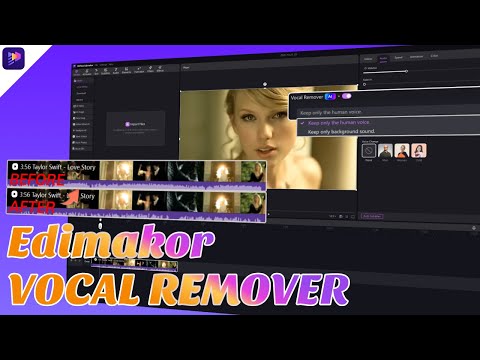 1:230:18Exporting processed audio in HitPaw EdimakorThe user walks through the export process, showing how to select preferences like format, resolution, and bitrate before saving the final file to the computer.Edimakor for Creators