Basic video editing in HitPaw Edimakor

 HitPaw Edimakor
Demo summary
The video demonstrates how to import clips, perform timeline trimming and splitting, add transitions, customize text styles, and apply keyframes for animations using HitPaw Edimakor.
Step-by-step
- Open Edimakor and create a new project
- Import clips using the plus icon or by dragging them onto the timeline
- Trim clips by dragging the edge or use the split tool to cut unwanted parts
- Add transitions or titles from the menu
- Customize fonts, colors, and animations in the editing panel
- Adjust audio levels and fade-ins
- Use auto subtitles to generate captions
- Apply keyframes to animate elements like zoom or opacity
Options
- Apply ready-made text styles instead of manual customization
- Import via the plus icon or drag-and-drop
Tips
- Zoom in for precise edits and zoom out to keep the entire project organized
AI Video Editor
 0:270:56AI Motion Tracking and Smart Auto Mosaic in EdimakorThe video demonstrates how to use HitPaw Edimakor to track moving objects or faces and automatically apply mosaics or linked elements that follow the motion.HitPaw Edimakor
- 2:221:06Generate and style AI subtitles in EdimakorThe software demonstrates automatic keyword recognition and progressive subtitle styling to highlight important speech segments and customize text appearance.HitPaw Edimakor
 1:120:36Edit generated video clips and scriptThe tutorial walks through editing the generated paragraphs, replacing media files using 'autopick' or local imports, and deleting unwanted sections within the Edimakor editor.Edimakor for Creators
- 1:480:24Add AI voiceover and subtitlesThe user demonstrates how to enable AI voiceovers, select specific voices and languages, apply subtitle styles, and change background music in HitPaw Edimakor.Edimakor for Creators
- 2:120:15Export final video in EdimakorThe video shows how to configure export settings including resolution and format before saving the final project.Edimakor for Creators
- 0:220:46Basic video editing in HitPaw EdimakorCurrentThe video demonstrates how to import clips, perform timeline trimming and splitting, add transitions, customize text styles, and apply keyframes for animations using HitPaw Edimakor.HitPaw Edimakor
 2:330:17Final video editing and export in EdimakorThe clip shows the final assembly of AI-generated scenes on the timeline, adding transitions, and exporting the finished music video.HitPaw Edimakor
 1:100:17Configure preferences in HitPaw EdimakorThe video demonstrates how to access the settings menu in HitPaw Edimakor to change the interface language and set a custom default saving path for projects.Edimakor for Creators
- 1:470:47Navigate the HitPaw Edimakor main interfaceA walkthrough of the HitPaw Edimakor home screen showing the New Project button, AI tools section, project history, and the template library.Edimakor for Creators
- 2:341:04Explore the HitPaw Edimakor editing workspaceThe demo shows the internal editing workspace of HitPaw Edimakor, including the media library, AI feature tabs (AI Avatar, Subtitles), the timeline for dragging clips, and the inspector panel for fine-tuning properties.Edimakor for Creators
 1:180:24Auto-generate and translate subtitles in HitPaw EdimakorThe video shows the process of using the 'Auto Subtitle and translation' tool to automatically transcribe video audio and translate it into a different language.HitPaw Edimakor
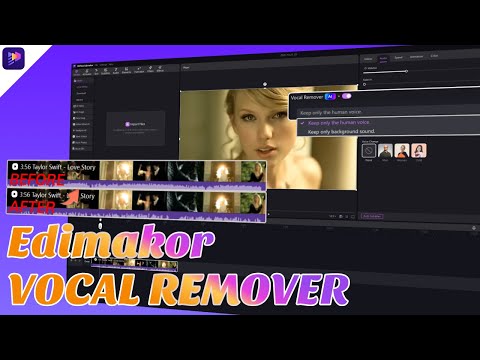 1:230:18Exporting processed audio in HitPaw EdimakorThe user walks through the export process, showing how to select preferences like format, resolution, and bitrate before saving the final file to the computer.Edimakor for Creators