Configuring Camera Movements in Higgsfield Cinema Studio
 Higgsfield
Demo summary
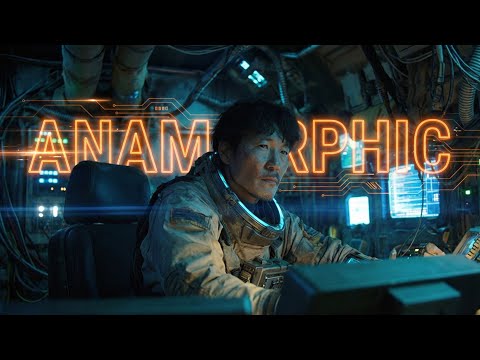
The demonstration shows the dropdown menu in Higgsfield Cinema Studio where users can select specific camera moves like Dolly, Jib, or Orbit, including the visual GIF previews for each movement.
Step-by-step
- Switch to Video mode
- Select Only First Frame
- Enter a prompt describing the image subject
- Open the camera movement dropdown menu
- Hover over the thumbnails to view the GIF previews of each movement
- Select a specific camera move like Dolly or Jib
Options
- Dolly shot in
- Jib up
- Orbit
Tips
- Use the visual GIF previews to understand camera movements if you are not familiar with live-action filmmaking terminology
Highlights
“Very straightforward.”
All demos from “AI Anamorphic Cinematography | Higgsfield Cinema Studio Tutorial”
- 1:102:06Applying Anamorphic Lens Emulation in Higgsfield Cinema StudioThe creator demonstrates importing a Midjourney image into Higgsfield Cinema Studio and selecting IMAX film back and Panavision C-series lens settings to generate a 21:9 anamorphic widescreen image.Higgsfield· AI Expand Image
- 4:130:33Generating Video from First and Last Frames in HiggsfieldThe user shows the process of taking an anamorphic wide shot and its modified version (with the character removed) to generate a video transition using Higgsfield's video mode.Higgsfield· Video to Video
- 5:400:49Configuring Camera Movements in Higgsfield Cinema StudioCurrentThe demonstration shows the dropdown menu in Higgsfield Cinema Studio where users can select specific camera moves like Dolly, Jib, or Orbit, including the visual GIF previews for each movement.Higgsfield· AI Animation Generator
- Watch “AI Anamorphic Cinematography | Higgsfield Cinema Studio Tutorial” →
AI Animation Generator
 12:311:40AI Video Character Replacement WorkflowA demonstration of a complex workflow where a generated character is merged into a separate scene asset to create an animated video output.DraftID
 1:041:40Create a consistent AI character in Higgsfield Cinema StudioThe user demonstrates how to use the 'Cast' feature in Higgsfield to build a character from scratch by selecting genre, budget, era, archetype, and physical traits like hair and eye color.Get365AI
- 3:491:51Direct a multi-shot AI video sequenceThe user shows how to combine a saved character and environment in the Director panel, set camera movements, and use the 'multi-shot auto' feature to generate a consistent cinematic scene.Get365AI
 6:471:30Directing video scenes with emotion controlsConor demonstrates the Higgsfield video mode interface, selecting saved characters and locations while setting specific emotional states like 'serenity' and 'joy' to influence the generated clip.Creating with Conor
 9:371:15Configure video generation settings and character emotionsThe narrator walks through the director panel in Higgsfield, dropping in character and location assets, and using the 'smile icon' to set specific character emotions like 'vigilance' for the scene.Youri van Hofwegen
 7:182:10Animate talking characters with Higgsfield Kling 3.0The creator shows how to use the Kling 3.0 model in Higgsfield, uploading a reference image and providing a text-to-video prompt with specific dialogue in quotation marks to animate the characters.Taro Creates
 8:241:08Final video generation with audio and video referencesThe user performs a complex task in Higgsfield by combining a timeline prompt, a character board, and a blacked-out video reference to sync audio and visuals for a final dance clip.Mira AI
 3:381:17Setting up a scene in Sea Dance 2The creator navigates the Higgsfield UI to access Sea Dance 2, uploads a key visual image reference, and adds a character sheet to maintain consistency.Jack Vs. AI
 3:511:27Directing multi-shot sequences in Manual ModeThe user walks through the Manual Mode interface in Higgsfield, setting scene durations, camera movements (tracking, orbit, dolly), and character emotion/genre tags for a multi-shot video.Higgsfield AI
- 5:250:51Generating a horror sequence with character referencesThe user demonstrates uploading character reference sheets and a keyframe prompt to generate a consistent multi-shot horror sequence in Higgsfield Cinema Studio 2.Higgsfield AI
 2:571:42Navigating Kling 3.0 settings in HiggsfieldThe creator demonstrates how to access Kling 3.0 models within the Higgsfield interface and explains settings for duration, aspect ratio, and native audio.Sebastien Jefferies
- 7:252:10Setting up character Elements for consistencyThe user shows how to create 'Elements' by uploading character reference images and providing descriptions to maintain subject consistency across AI video generations.Sebastien Jefferies