Convert image to video using HitPaw VikPea

 HitPaw VikPea
Demo summary
The creator shows the process of uploading an image to the HitPaw video generator, selecting a model, and generating a smooth cinematic video clip.
Step-by-step
- Go to the Video Generator
- Select Image to Video
- Choose the AI model
- Upload your image
- Select the aspect ratio and duration
- Click Start
Highlights
“you can see how smooth and high-quality the result looks”
All demos from “From 1080p To 4K 😱 | 4K Quality Tutorial | Hitpaw Vikpea | AI Tool”
- 0:351:16Upscale low-quality video to 4K with HitPaw VikPeaThe user demonstrates how to use the UHD resolution model in HitPaw VikPea to enhance a blurred video, showing a side-by-side comparison of the 4K result.HitPaw VikPea· AI Video Upscaler
- 1:510:28Convert image to video using HitPaw VikPeaCurrentThe creator shows the process of uploading an image to the HitPaw video generator, selecting a model, and generating a smooth cinematic video clip.HitPaw VikPea· Image to Video
- 2:190:34Generate video from text prompt with HitPaw VikPeaThe video demonstrates entering a text prompt into HitPaw VikPea's 'text to video' tool to generate a realistic, full-body cinematic video clip.HitPaw VikPea· Text to Video
- Watch “From 1080p To 4K 😱 | 4K Quality Tutorial | Hitpaw Vikpea | AI Tool” →
Image to Video
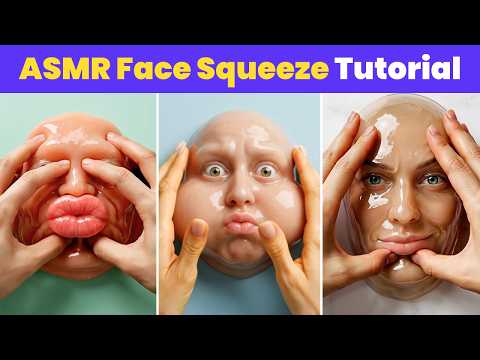 1:070:32Animate images into ASMR videos with HitPaw VikPeaThe creator demonstrates using HitPaw VikPea's AI video generator with the Kling or Veo 3 models to animate a static image into a face-squeezing ASMR video.HitPaw
- 1:510:28Convert image to video using HitPaw VikPeaCurrentThe creator shows the process of uploading an image to the HitPaw video generator, selecting a model, and generating a smooth cinematic video clip.Gujju Edition