Adobe Audition: Assemble clips in Adobe Premiere Pro

 Adobe Audition
Demo summary
The user demonstrates arranging the generated AI video clips on a timeline and scaling them to fit the frame in Premiere Pro.
Step-by-step
- Open Premiere Pro
- Arrange the generated video clips on the timeline scene by scene in their original order
- Adjust the timeline zoom to see all clips
- Select clips that do not fill the frame
- Scale the clips up until they fit the full frame
Tips
- Ensure you match the video sequence to the order of the initial images used for generation
All demos from “$100/Day with Fliki AI (Full Step-by-Step Guide)”
- 1:561:04Generate images with Google ImageFXThe user demonstrates using Google's image tool (referred to as Google Disk/ImageFX) to upload a style reference and generate images from prompts.Imagefx· Image to Image
- 3:041:07Animate images using Google VEOThe user shows how to upload generated images into Google's VEO 3.1 model and apply video prompts to create animated clips.Fliki· Image to Video
- 4:220:34Assemble clips in Adobe Premiere ProCurrentThe user demonstrates arranging the generated AI video clips on a timeline and scaling them to fit the frame in Premiere Pro.Adobe Audition· AI Video Editor
- 6:001:52Automated video creation with Fliki AIThe user demonstrates the 'Script to Video' feature in Fliki AI, showing how to paste a script, select a dynamic layout, and generate a multi-scene video with voiceover.Fliki· Script To Video AI Generator
- 8:580:52Create YouTube thumbnails with Fliki AIThe user demonstrates the thumbnail design tool in Fliki AI by entering a prompt for a Titanic documentary and generating three high-quality options.Fliki· AI Image Generator
- Watch “$100/Day with Fliki AI (Full Step-by-Step Guide)” →


AI Video Editor
 1:330:15Remove objects from video with Higgsfield AIThe user demonstrates selecting a clip in Premiere Pro and using the 'Edit Video' feature with a text prompt to remove a car from the background.Higgsfield AI
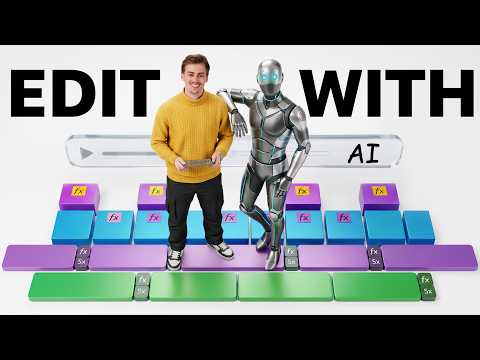 1:202:35Using Higgsfield Plugin in Premiere ProThe creator demonstrates the Higgsfield plugin integrated directly into Premiere Pro, showing how to reframe clips for social media, upscale footage to 4K, and generate new scenes without leaving the editing timeline.Dan Kieft
 10:560:32Masking AI video layers in Premiere ProThe tutorial shows how to use the pen tool in Adobe Premiere Pro to create a mask over a window, allowing two different AI video generations to be stacked for a composite effect.Rourke Heath
 14:279:14Assemble AI UGC ad in Premiere ProA step-by-step walkthrough of importing AI-generated clips into Adobe Premiere Pro, applying J and L cuts, adding TikTok-style bubble text, and generating automated captions to create a finished ad.Fraser Cottrell
- 4:220:34Assemble clips in Adobe Premiere ProCurrentThe user demonstrates arranging the generated AI video clips on a timeline and scaling them to fit the frame in Premiere Pro.One Tech Nation
 13:500:24Edit AI video in Premiere ProThe creator walks through the process of syncing Higgsfield AI voiceovers with video clips and adding captions in Adobe Premiere Pro.Jack Craig
 3:190:43Inserting placeholders and importing external audioThe demo covers inserting visual placeholders in the timeline and using the 'plus add' button to import and transcribe external audio files.Jen Jonson
- 4:060:45Adjusting background music and adding stock introsThe narrator demonstrates bringing back background music via settings and adding stock music intros/outros by dragging them into the project.Jen Jonson
 0:230:32Clear media cache on startup in Premiere ProThe creator demonstrates how to open the reset options window by holding Alt/Option while launching Premiere Pro to clear the media cache and improve performance.Premiere Gal
- 1:230:34Remove backgrounds with Alpha effectShows how to use the Alpha effect in Premiere Pro to instantly remove white, black, or checkered backgrounds from graphic elements and manually adjust settings for better results.Premiere Gal
- 2:380:32Create camera shakes and wigglesShows how to apply and customize the Camera Shake and Wiggle effects in the Effect Controls panel to add movement to footage and graphics.Premiere Gal
- 4:370:26Mask blurs with Compound BlurDemonstrates using the luminance of a secondary video layer (smoke) as a mask for the Compound Blur effect on a primary clip.Premiere Gal