DZine AI: Generate AI images with Dzine

 DZine AI
Demo summary
The user demonstrates how to use the 'Text to Image' tool in Dzine, selecting the Nano Banana Pro model and configuring aspect ratios to generate a cartoon-style jungle scene.
Step-by-step
- Click on Text to Image from the AI tools page
- Select a model from the model selector in the upper left (e.g., Nano Banana Pro)
- Delete the placeholder text in the prompt box and enter your own description
- Toggle the Prompt Improver on to automatically enhance the prompt
- Select the Output Quality (1K, 2K, or 4K)
- Choose an Aspect Ratio from the presets (e.g., Mobile 9:16)
- Click Generate to create the image
Options
- Choose between realistic, illustration, or specialty character models
- Select device-based formats or social presets for YouTube, Instagram, and Twitter
- Adjust the Content Filter strictness (model permitting)
Watch out for
- Higher output quality (4K) uses more credits
- The Content Filter option cannot be turned on when using the Nano Banana Pro model
Tips
- Use Nano Banana Pro for stylized, cartoon-like characters intended for animation
- Keep prompts simple but clearly establish multiple characters in the scene to facilitate multi-lip sync later
- Leave the Prompt Improver on to get more detailed results behind the scenes
- Select the Mobile 9:16 aspect ratio if you plan to use the output for Reels, Shorts, or TikTok
Highlights
“this gives you a strong starting point to move into animation next because the characters are readable, the framing works well”
All demos from “Dzine Walkthrough: From AI Images to Talking Animated Characters”
- 2:163:58Generate AI images with DzineCurrentThe user demonstrates how to use the 'Text to Image' tool in Dzine, selecting the Nano Banana Pro model and configuring aspect ratios to generate a cartoon-style jungle scene.DZine AI· Text to Image
- 6:250:50Using the Prompt Improver in DzineA comparison showing the difference in image output when toggling the 'Prompt Improver' switch on and off within the Dzine workspace.DZine AI· AI Image Generator
- 7:472:28Animate static images with Dzine AI VideoThe video shows the process of converting a generated image into an 8-second animation using the Google VEO 3.1 model within the Dzine platform.DZine AI· Image to Video
- 11:030:49Manual face detection for lip-sync in DzineThe user demonstrates how to manually mark faces in a video frame to ensure the lip-sync tool correctly identifies characters for animation.DZine AI· AI Lip Sync Generator
- 15:171:36Multi-character lip-sync and timeline editingThe user demonstrates how to arrange multiple audio clips on a timeline to prevent characters from talking over each other and then generates the final lip-synced video.DZine AI· AI Lip Sync Generator
- Watch “Dzine Walkthrough: From AI Images to Talking Animated Characters” →
Text to Image
- 2:163:58Generate AI images with DzineCurrentThe user demonstrates how to use the 'Text to Image' tool in Dzine, selecting the Nano Banana Pro model and configuring aspect ratios to generate a cartoon-style jungle scene.Blog With Ben
 1:171:02Generate character reference images in DzineThe presenter demonstrates using the 'Text to Image' tool within Dzine to generate character reference sheets using both the Nana Banana and Midjourney V7 models.Dzine
 1:360:44Generate images from text in Dzine.aiThe user demonstrates how to paste a prompt from ChatGPT into Dzine.ai, select the Google ImageGen 4 model, and generate high-quality 3D character images.Ai with Gary
 1:440:46Generate cinematic images in Dzine AIThe user demonstrates starting a new project in Dzine AI, pasting a prompt with meta tokens, and selecting models like Nano Banana Pro to generate realistic base images.metricsmule
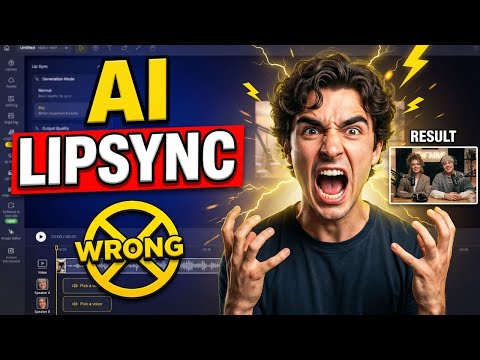 0:500:59Generate base images with Dzine AIThe user demonstrates how to use the text-to-image tool in Dzine AI, selecting the 'Nano Banana Pro' style and setting canvas aspect ratios for a base scene.AiTLDR
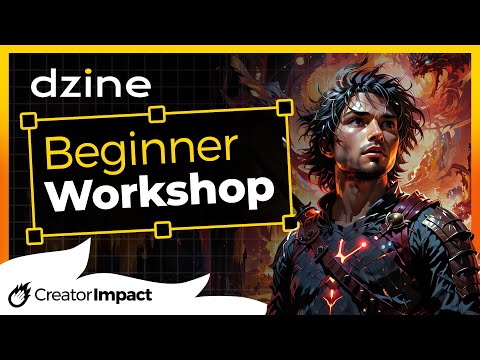 3:361:11Text to image generation in Dzine AIThe creator demonstrates how to enter a text prompt for a 'cyberpunk warrior' and generate multiple image variations using Dzine AI.Wade McMaster - Creator Impact
 0:331:05Text-to-Image generation with Dzine AIThe user demonstrates how to generate images from text prompts using the Flux model and various style presets within the Dzine AI interface.Dzine