NightCafe Creator: Edit and enhance AI images with NightCafe toolset

 NightCafe Creator
Demo summary
A walkthrough of the post-generation toolbar in NightCafe Studio, showing how to use features like Upscale, Prompt to Edit, Expand, and Background Removal.
Step-by-step
- Locate the toolbar of creative options under your generated image
- Select Upscale to increase resolution and sharpness
- Use Creative Upscale to add new artistic details based on your prompt
- Select Prompt to Edit to enter a new description for modifications
- Use Expand to extend the artwork surroundings beyond original borders
- Select Adjust and Crop to fine-tune framing and aspect ratio
- Click Remove Background to isolate the subject
Options
- Standard Upscale for resolution only
- Creative Upscale for resolution plus added artistic detail
- Background removal for subject isolation or scene replacement
All demos from “Step-by-Step Guide For Creator.Nightcafe.Studio | Create Stunning AI Art in Minutes”
- 1:180:18Generate AI art from text prompts in NightCafe StudioThe video demonstrates entering a specific text prompt for a 1940s portrait and selecting models and styles to generate an image in NightCafe Studio.NightCafe Creator· Text to Image
- 1:360:42Edit and enhance AI images with NightCafe toolsetCurrentA walkthrough of the post-generation toolbar in NightCafe Studio, showing how to use features like Upscale, Prompt to Edit, Expand, and Background Removal.NightCafe Creator· AI Photo Editor
- Watch “Step-by-Step Guide For Creator.Nightcafe.Studio | Create Stunning AI Art in Minutes” →
AI Photo Editor
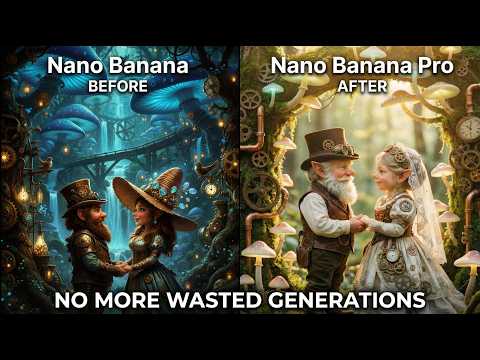 8:010:54Targeted image transformations in NightCafeThe video demonstrates applying specific edits like blurring the background and increasing color saturation to an existing image using the Nano Banana Pro model.NightCafe Studio
- 1:360:42Edit and enhance AI images with NightCafe toolsetCurrentA walkthrough of the post-generation toolbar in NightCafe Studio, showing how to use features like Upscale, Prompt to Edit, Expand, and Background Removal.Team Hexus