Higgsfield: Drone Shot preset

 Higgsfield
Demo summary
The user selects the drone shot preset and pastes a scene prompt to create an aerial flyover of the environment.
Step-by-step
- Open Cinema Studio
- Select the Drone Shot preset
- Paste your scene prompt into the input field
Tips
- Use the drone shot preset to create a modern version of an establishing shot
Highlights
“Cinema Studio has drone shot as a preset, which gives you a basic aerial flyover”
All demos from “28 Higgsfield Prompts to Create Highly Cinematic AI Videos”
- 0:280:09Generate a hero frame in HiggsfieldThe creator demonstrates generating a master character image by selecting the Nano Banana Pro model and entering a specific prompt in the image section.Higgsfield· Text to Image
- 1:110:06Apply Dolly In preset in Cinema StudioThe user opens the movements panel in Higgsfield, selects the 'dolly in' preset, and enters a scene description to generate a camera move.Higgsfield· AI Animation Generator
- 1:290:03Apply Dolly Out presetThe creator selects the dolly out preset and pastes a prompt to demonstrate increasing the scale of the environment relative to the character.Higgsfield· AI Video Generator
- 1:510:08Create a custom fast dolly in promptSince there is no speed preset, the creator demonstrates pasting a full camera direction prompt into the field to achieve a 'rush' effect.Higgsfield· AI Video Prompt Generator
- 2:120:04Using Pan presetsThe creator demonstrates selecting the pan left and pan right presets and pasting prompts to reveal the environment from a fixed spot.Higgsfield· AI Video Generator
- 2:460:04Dolly Left/Right lateral slideThe user selects the lateral movement preset and pastes a prompt to demonstrate parallax depth in the AI-generated scene.Higgsfield· AI Animation Generator
- 3:090:04Custom Over the Shoulder shotThe creator demonstrates how to manually prompt for an over-the-shoulder perspective when no preset is available.Higgsfield· AI Image Generator
- 4:050:08Custom 180-degree orbitThe user pastes a custom prompt to control the exact start and stop points of a camera orbit around a character.Higgsfield· AI Animation Generator
- 4:300:07360-degree rotation with Orbit presetThe creator uses the 'orbit around' preset in Cinema Studio to generate a full continuous rotation around the subject.HHiggsfield Cinema Studio· AI Animation Generator
- 6:050:05Zoom In presetThe creator selects the zoom in preset to demonstrate background compression without physical camera movement.Higgsfield· AI Video Editor
- 6:390:06Custom Crash Zoom promptThe user demonstrates pasting a custom prompt to create a sudden 'snap' zoom effect for dramatic impact.Higgsfield· AI Video Prompt Generator
- 6:580:07Rack Focus with custom promptsThe creator demonstrates how to describe two different focus states in a single prompt to shift the viewer's attention between objects.Higgsfield· AI Video Prompt Generator
- 7:570:08Drone Shot presetCurrentThe user selects the drone shot preset and pastes a scene prompt to create an aerial flyover of the environment.Higgsfield· Text to Video
- 10:070:13Leading tracking shot presetThe creator selects the 'camera follows' preset and enters a prompt to have the camera pull back as the subject walks forward.Higgsfield· AI Animation Generator
- 11:590:08Connecting clips with the Through ShotThe creator demonstrates carrying over the final frame of a previous clip as the starting frame for a new 'through shot' to ensure visual consistency.Higgsfield· AI Video Editor
- Watch “28 Higgsfield Prompts to Create Highly Cinematic AI Videos” →
Text to Video
 2:160:42Text-to-Video with SeaDance 1.5 ProThe video shows how to configure settings like aspect ratio, clip length, and audio in SeaDance 1.5 Pro to generate a video from a text prompt.Malva AI
 2:50:294:47Generating emotional character performancesThe user demonstrates prompting Higgsfield AI for specific emotional physical cues, such as a trembling lip and sobbing, to create a dramatic character breakdown.Higgsfield AI
 2:000:41Text-to-video with multi-shot in Kling 3.0The user demonstrates generating a dynamic military action scene using a text prompt and the new multi-shot feature in Kling 3.0 to create automatic scene cuts.Higgsfield AI
- 5:050:49Complex camera movement controlThe user prompts a robotic arm scene with specific lateral passes, crash pushes, and pull-backs to demonstrate Kling 3.0's improved camera physics and motion smoothness.Higgsfield AI
 5:110:30Generate cinematic locations with HiggsfieldThe creator shows how to use the Location option in Higgsfield Cinema Studio to generate a cinematic background with specific lighting and camera angles based on a short text prompt.Youri van Hofwegen
 3:360:49Generating AI video with tagged character referencesThe creator shows how to paste a multi-shot prompt into Higgsfield and use the '@' symbol to tag specific character images (detective and suspect) before generating the final video.Creative Pad Media
 8:344:13Generate an atmospheric establishing shot with Seedance 2.0A live demonstration of generating a 15-second video of a 'Storm Manor' using a text prompt, showing the real-time wait and the final rendered output featuring lightning and darkness.JSFILMZ
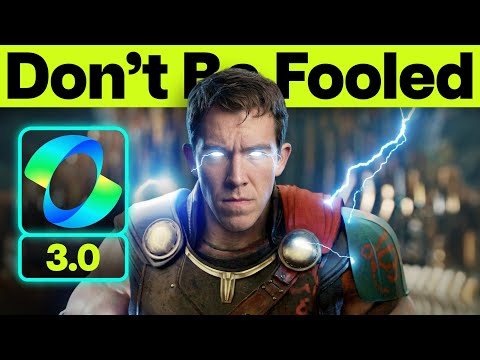 1:260:24Generate subtle human emotion with Kling 3.0Kling 3.0 is shown performing a text-to-video generation of a young woman shifting from joy to concern, demonstrating realistic facial micro-expressions.Joseph Martin
- 7:570:08Drone Shot presetCurrentThe user selects the drone shot preset and pastes a scene prompt to create an aerial flyover of the environment.Youri van Hofwegen