Animate a landscape image with MyEdit
 MyEdit
Demo summary
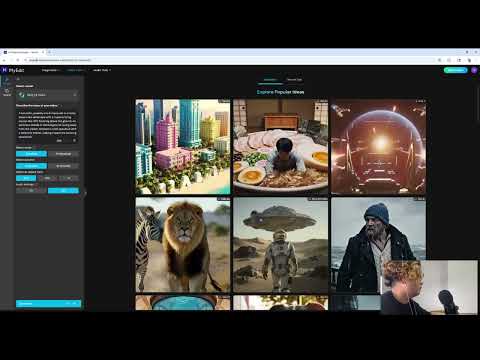
The user uploads a landscape photo to MyEdit and uses the 'Image to Video' function with custom prompts to generate a moving video with drifting clouds and changing light.
Step-by-step
- Locate and click on the Image to Video function
- Upload a landscape image
- Select an animation template or enter a custom prompt
- Click Generate
- Download the resulting video file
Options
- Choose from animation templates like slow zoom, pan, or rotate
- Write custom prompts to define specific movements
Highlights
“The effect is natural and can be downloaded directly.”
All demos from “MyEdit Tutorial: Online AI Video Editor, Image to Video in Seconds, Completely Free”
- 0:421:14Animate a landscape image with MyEditCurrentThe user uploads a landscape photo to MyEdit and uses the 'Image to Video' function with custom prompts to generate a moving video with drifting clouds and changing light.MyEdit· Image to Video
- 2:080:39Generate video from text using MyEditThe video shows the 'Text to Video' tool in MyEdit where a prompt for a futuristic city at night with speeding cars is used to generate cinematic footage.MyEdit· Text to Video
- 2:590:20Expand image aspect ratio with MyEdit AIThe demonstration shows MyEdit's image expansion tool automatically filling in the sides of a square image to convert it into a widescreen format.MyEdit· AI Expand Image
- Watch “MyEdit Tutorial: Online AI Video Editor, Image to Video in Seconds, Completely Free” →
Image to Video
- 0:421:14Animate a landscape image with MyEditCurrentThe user uploads a landscape photo to MyEdit and uses the 'Image to Video' function with custom prompts to generate a moving video with drifting clouds and changing light.AI Application Developer