Post-recording customization in Camtasia Online

 Camtasia online
Demo summary
The user shows how to modify the background and visual effects of a video after the recording has already been completed within the Camtasia Online project view.
Step-by-step
- Select the background element in the project view
- Choose a new background to swap out the existing one
- Navigate to the effects menu
- Select a border effect
- Cycle through the variations to find the desired visual style
Options
- Swap backgrounds after recording is complete
- Apply different border variations
Tips
- Expect to use some trial and error when testing different effect variations to find the best look
Highlights
“It looks like we can still customize uh everything once we've already done. Yep. This is uh pretty good. Pretty decent.”
All demos from “Camtasia Online First Look - Free Screen Recording in Your Browser | No Watermark”
- 1:453:18Configure recording settings in Camtasia OnlineThe user demonstrates how to select recording sources (screen, camera, and microphone) and customize the visual layout, including background patterns, camera cropping, and drop shadows in Camtasia Online.Camtasia online· AI Video Recording
- 5:050:45Record a screen capture with Camtasia OnlineThe video shows the live recording process of a browser window using Camtasia Online, including the countdown and the actual capture of a desktop application.Camtasia online· AI Video Recording
- 6:250:27Trim a video clip in Camtasia OnlineThe user demonstrates how to use the trim tool in Camtasia Online to remove the beginning and end of a recorded scene.Camtasia online· AI Video Editor
- 8:010:48Post-recording customization in Camtasia OnlineCurrentThe user shows how to modify the background and visual effects of a video after the recording has already been completed within the Camtasia Online project view.Camtasia online· AI Video Editor
- Watch “Camtasia Online First Look - Free Screen Recording in Your Browser | No Watermark” →
AI Video Editor
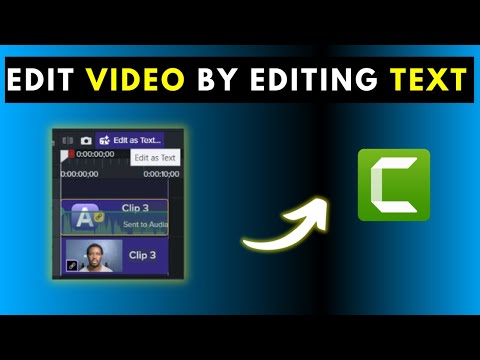 1:191:31Importing video and launching Audiate from CamtasiaThe presenter imports a video file into Camtasia 2026, drags it to the timeline, and clicks the 'Edit as Text' button to launch Camtasia Audiate for transcription.David Mbugua
 4:170:29Trimming video in Camtasia OnlineThe user demonstrates how to use the trim tool to adjust the start and end points of a recorded clip within the Camtasia Online dashboard.Learn Create Market Videos
- 4:480:42Changing video layouts after recordingThe demonstration shows how to swap between different scene layouts and camera positioning after the recording has been completed.Learn Create Market Videos
 2:110:18Trim and re-edit recorded scenesThe video demonstrates using the trim feature to remove footage from the start or end of a scene and retroactively changing layouts and backgrounds after recording.Camtasia
- 2:590:09Export and share video linksThe user demonstrates how to export the final project and generate a shareable URL for distribution.Camtasia
- 6:250:27Trim a video clip in Camtasia OnlineThe user demonstrates how to use the trim tool in Camtasia Online to remove the beginning and end of a recorded scene.David Mbugua
- 8:010:48Post-recording customization in Camtasia OnlineCurrentThe user shows how to modify the background and visual effects of a video after the recording has already been completed within the Camtasia Online project view.David Mbugua
 3:590:33Collaborate on video projectsThe user demonstrates the collaboration menu in Camtasia Online, showing how to invite others via email and set scene-specific editing permissions.Flipped Classroom Tutorials
 1:171:27Add dynamic subtitles in Camtasia 2024The presenter demonstrates how to drag the Dynamic Subtitles effect onto an audio track in Camtasia 2024 to automatically generate and edit captions.Russell Stannard (TTVideos)
- 3:370:43Create animated chapter titles in CamtasiaThe user shows how to select a pre-made title from the Camtasia Library, drag it to the timeline, and customize the text to create professional video chapters.Russell Stannard (TTVideos)
- 6:591:30Record voice narration over video in CamtasiaThe presenter demonstrates using the Voice Narration tool to record live audio over an existing video clip on the timeline and then applies subtitles to the new recording.Russell Stannard (TTVideos)
 6:400:55Basic video trimming and splitting in CamtasiaThe narrator demonstrates how to use the scrubber, split a clip using the 'S' key, and perform a ripple delete to remove mistakes from a recording.Your Learning Career