Generate realistic images from text with Vheer

 Vheer
Vheer
Demo summary
The creator demonstrates how to paste prompts into Vheer's text-to-image interface, selecting between 'Quality' and 'Max' models to generate high-quality portraits.
Step-by-step
- Navigate to the Vheer interface
- Paste your prompt into the text field
- Select either the Quality model or the Max model
- Choose the desired aspect ratio
- Click Generate
Options
- Use the Quality model for free and unlimited generations
- Use the Max (Pro) model for higher quality results via a subscription fee
Watch out for
- The Max model requires a paid subscription
Tips
- Compare results between the Quality and Max models to see which fits your needs
- Use simple prompts to achieve high-quality portrait results
Highlights
“this is not bad at all for a free AI generator. Look at all these images that are generated from simple prompts. I think they are amazing.”
All demos from “I Tried Vheer — FREE All-in-One AI Generator (Text→Image, Image→Video & More)”
- 1:071:39Generate realistic images from text with VheerCurrentThe creator demonstrates how to paste prompts into Vheer's text-to-image interface, selecting between 'Quality' and 'Max' models to generate high-quality portraits.Vheer· Text to Image
- 2:481:42Convert still images to video using VheerThe user uploads a generated image to Vheer's image-to-video tool, applies a camera movement prompt, and generates a short animated video clip.Vheer· Image to Video
- 4:441:32Apply AI style transfers to images in VheerThe video shows how to use Vheer's AI style transfer tool to convert a realistic portrait into Lego and Marvel comic anime styles.Vheer· AI Style Transfer
- 6:220:38Replace product backgrounds with Vheer AIThe creator demonstrates the AI background changer by uploading a perfume bottle image and selecting a new background style to generate a professional product shot.Vheer· AI Product Photography
- Watch “I Tried Vheer — FREE All-in-One AI Generator (Text→Image, Image→Video & More)” →
Text to Image
 1:012:11Text to image generation with Vheer 2.0The creator demonstrates how to generate cinematic images using the Seedream V4 and Flux models within the Vheer dashboard, including the use of the 'Think' prompt enhancement feature.Artificicy AI
 4:530:47Create 3D Pixar style images in Vheer AIThe user inputs a specific prompt for a 3D Pixar aesthetic into Vheer AI to generate a stylized character in a sunny park setting.AI Royal Creations
 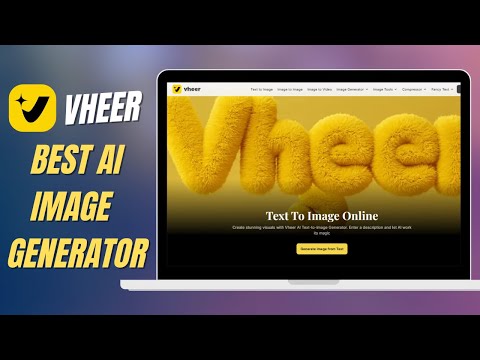 0:541:07Generate AI images from text with Vheer AIThe user demonstrates entering a text prompt into Vheer AI, selecting a resolution, and generating a professional-looking image that can be downloaded.Zorvex Tech
- 3:400:40Use AI prompt suggestions in Vheer AIThe video shows how to use the built-in prompt ideas feature (light icon) in Vheer AI to automatically generate creative prompts and images.Zorvex Tech
- 1:071:39Generate realistic images from text with VheerCurrentThe creator demonstrates how to paste prompts into Vheer's text-to-image interface, selecting between 'Quality' and 'Max' models to generate high-quality portraits.Everyday AI with Jayne
 1:352:43Generate AI images from text with Vheer AIThe creator demonstrates how to input a prompt for a 'golden cat' into Vheer AI, select a 16:9 aspect ratio, and generate a high-quality 3D cartoon image.Adenike Studio
  0:270:19Generate images from text with Vheer AIThe user demonstrates how to enter a prompt like 'steampunk flying bicycle' into Vheer AI's text-to-image tool to generate artwork.CyberTech