Mixboard: Generating new images from text prompts

 Mixboard
Demo summary
The video shows how to use the Mixboard chat interface to generate entirely new AI images based on descriptive text prompts like 'beautiful girl that is blonde'.
Step-by-step
- Open the Mixboard chat interface
- Type a descriptive text prompt into the message field
- Press Enter to generate the image
- Review the AI-generated results in the chat window
Options
- Reference an existing image to generate a similar-looking subject
- Generate entirely new images without using a reference photo
Tips
- Be creative with your prompts to explore the full power of the AI
- Use the tool to generate subjects that look similar to a reference but are unique individuals
Highlights
“it's really, really good. As you can see, the power of AI does something really, really cool. That's amazing.”
All demos from “Mixboard Tutorial for Beginners | Complete Walkthrough (2026)”
- 4:141:45Editing uploaded images with AI promptsThe creator uploads a personal photo to Mixboard and uses a text prompt to change the color of his shirt using AI, then downloads the result.Mixboard· AI Inpainting
- 6:041:24Generating new images from text promptsCurrentThe video shows how to use the Mixboard chat interface to generate entirely new AI images based on descriptive text prompts like 'beautiful girl that is blonde'.Mixboard· Text to Image
- Watch “Mixboard Tutorial for Beginners | Complete Walkthrough (2026)” →
Text to Image
- 6:041:24Generating new images from text promptsCurrentThe video shows how to use the Mixboard chat interface to generate entirely new AI images based on descriptive text prompts like 'beautiful girl that is blonde'.Drew Tutorial
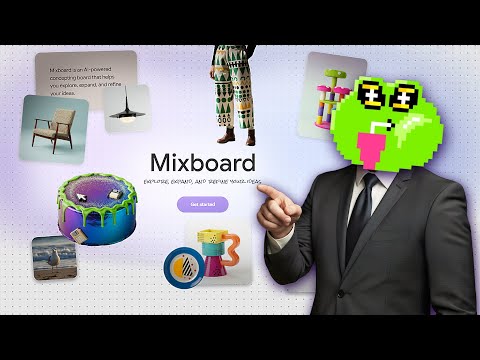 0:170:27Generate and iterate images from text in MixboardThe user demonstrates generating multiple 3D cartoon monster images from a text prompt and shows how to create variations of a selected image.Tutorials For You