Removing image backgrounds with Remove.bg

 Remove.Bg
Demo summary
The creator demonstrates dragging and dropping a generated graphic into Remove.bg to strip the background and prepare it for export to Canva.
Step-by-step
- Navigate to remove.bg
- Drag and drop your graphic into the tool
- Click the Edit in Canva button to export the image
Options
- Export directly to Canva for print on demand use
Highlights
“you might find this useful that you can go ahead and use a tool like remove.bg”
All demos from “Stop Paying For AI: Use Nano Banana Pro For Free”
- 1:370:38Configuring image generation in Google Labs FlowThe user demonstrates setting up a project in Flow by Google Labs, switching the mode to 'create image' and selecting the Nano Banana Pro model with portrait orientation.Google Flow· AI Image Generator
- 4:400:18Generating AI graphics with Nano Banana ProThe video shows the output of four AI-generated graphics in Flow, demonstrating the grid view and the quality of the Nano Banana Pro model results.Google Flow· AI Image Generator
- 4:580:48Editing AI images with Flow selection toolThe user demonstrates the built-in image editor in Flow, using the selection tool to highlight text on a generated image and prompting the AI to remove it in real-time.Google Flow· AI Object Remover/Eraser
- 6:310:15Removing image backgrounds with Remove.bgCurrentThe creator demonstrates dragging and dropping a generated graphic into Remove.bg to strip the background and prepare it for export to Canva.Remove.Bg· AI Background Remover
- Watch “Stop Paying For AI: Use Nano Banana Pro For Free” →

AI Background Remover
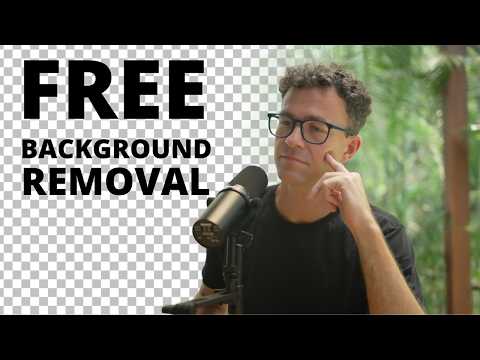 1:210:22Remove image background with Remove.bgThe user demonstrates the Remove.bg web tool, showing the successful removal but highlighting the low-resolution limitation of the free tier.TheFigCo
- 6:310:15Removing image backgrounds with Remove.bgCurrentThe creator demonstrates dragging and dropping a generated graphic into Remove.bg to strip the background and prepare it for export to Canva.Ryan Hogue Passive Income